From 1 October 2026, changes to surcharging will affect how you manage fees on invoices paid via Online Payments. More about RBA surcharge changes
AMEX, eftpos, Mastercard and Visa are introducing no-surcharge rules in Australia following the RBA’s recent guideline updates.
What the RBA changes mean for you
MYOB will remove the option to pass the online payment fee on to your customers as a surcharge.
The surcharge will be automatically removed from new and existing invoices.
If a customer pays an invoice on or after 1 October 2026, they’ll pay the invoice amount only. The payment fee will be deducted from the amount deposited into your nominated bank account.
In summary
Until 30 September 2026: You can choose whether your business or your customer pays the online payment fee.
From 1 October 2026: Surcharging will be turned off by default and MYOB will remove the option to pass the online payment fee on to your customers. Customers can continue to pay invoices online, but your business will pay the online payment fee.
How does surcharging work?
When surcharging is enabled, you can pass the online payment fee on to your customers as a surcharge.
When surcharging is enabled (until 30 September 2026)
Customers who make payments by clicking Pay securely in their online invoices, will see the online payment fee added to their payment.
They see the invoice amount, surcharge value and total amount before paying.
After the customer pays, the surcharge is deducted from the payment before the balance is deposited into your bank account.
When surcharging is disabled
When surcharging is off, the customer pays the invoice amount only. Your business pays the online payment fee, which is deducted from the amount deposited into your nominated bank account.
From 1 October 2026, surcharging will be turned off by default and the option to pass the online payment fee on to your customers will no longer be available.
BPAY payments
BPAY payments cannot be surcharged. If you allow BPAY payments and a customer chooses to pay by BPAY, you will be charged the online payment fee.
You can turn BPAY off or on for an individual invoice or for all invoices.
GST on surcharges
If the invoice you issued includes GST and you surcharge the online payment fee, GST also applies to the surcharge. The surcharge is GST-inclusive, and the GST collected is treated like any other GST collected by your business.
The app takes care of GST calculations, so you don’t have to worry about it.
Turn surcharging on or off for all new invoices
The settings and instructions below apply until 30 September 2026.
From 1 October 2026, surcharging will be turned off by default and MYOB will remove the related surcharge settings. You do not need to change these settings yourself.
Tap More then tap Invoice and quote settings.
Tap Invoice payment settings then tap Settings.
Tap Online Invoice Payments.
Select the option Your customers pay the surcharge:
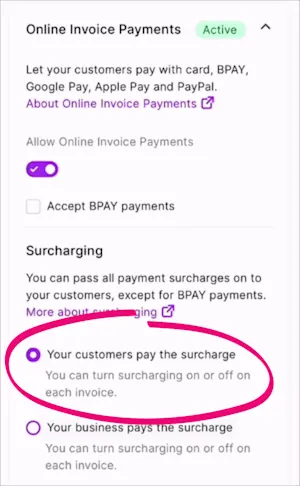
Just above this option is where you can choose if you want to Accept BPAY payments. If a customer pays via BPAY, you cannot pass on the surcharge.
Tap Save. Now, you just need to create and send invoices like you normally would.
To turn surcharging off for all new invoices, repeat these steps and select the option Your business pays the surcharge.
Turn surcharging on or off for a single invoice
Changing the payment options for an individual invoice only affects that invoice. It won’t change your default online payment settings.
Create the invoice as you normally would (go to Money in, tap + and Create invoice).
Under Payment options, choose if the Customer pays surcharge for this invoice.
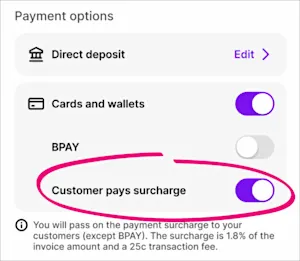
If you change this setting on an invoice you've already sent, you'll need to save your changes and resend the invoice.
Just above this option is where you can choose if you want to accept BPAY payments. If a customer pays via BPAY, you cannot pass on the surcharge.Complete the invoice and send it to your customer.
How the surcharging looks to your customers
When surcharging is enabled, the customer receives their invoice as they normally would, but they'll see a Pay securely button and a summary of the invoice.

When they click Pay securely, they can choose a payment method and view their payment details.
If BPAY is excluded, it won’t appear as a payment option. If you allow BPAY payments and a customer chooses to pay via BPAY, they will not incur a surcharge fee. However, you will continue to be charged any fees related to payments received via BPAY.
If you’ve chosen to pass the surcharge on for that invoice, the surcharge is applied when the customer enters their payment details.
If a customer pays through PayPal while customer surcharging is enabled, the surcharge appears as Handling in the customer’s PayPal wallet.

Handling the payment
When a customer makes a payment, the details will automatically be entered into your app, and the invoice will be closed off.
The payments and fees will be recorded in the categories you've specified in your online payments settings (see the steps above).
FAQs
Where do I find the surcharge amounts?
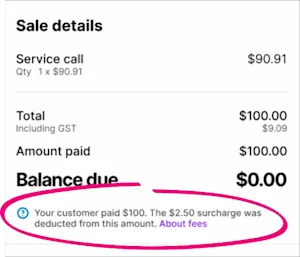
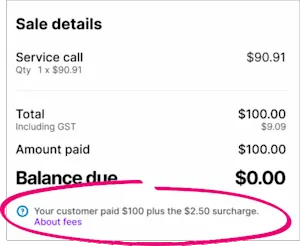
You can see the surcharge details at the bottom of the paid invoice.
Go to Money in and scroll down and tap View all invoices.
Open the invoice.
This example shows what it looks like if you've paid the surcharge:
This example shows the surcharge paid by the customer:
How do I change the bank account my online payments (minus fees) are deposited into?
You can change the bank account your online payments go into by tapping More > Invoice and quote settings > Invoice payment settings > Settlement bank account.
This is also where you can change the payment and fee category – these are categories in the app that take care of the accounting side of your customers' payments.