If you use Claude, you can use it to query your MYOB financial data. This uses a standard called MCP (Model Context Protocol) which allows AI products like Claude to securely connect to MYOB Business to retrieve your business data.
Once connected, you can ask questions in Claude about your business finances in plain English and get answers based on your live MYOB data.
The connector provides read only access to your MYOB data, which means once you're connected, Claude can retrieve information from MYOB Business, but it can’t make changes to your data.
What you need to connect
To connect Claude to MYOB, you'll need:
an active MYOB Business Pro, Lite or AccountRight subscription
your own Claude subscription
your MYOB account username and password (the same ones you use to sign into MYOB Business)
Allow AI access in My Account
Before you connect Claude or other AI products to your MYOB Business, the business owner (the Owner user in the MYOB Business file) must allow access in My Account. The owner can allow Claude for each business they are the owner of.
Once access is allowed, a user who has access to the MYOB Business file and their own Claude account can connect Claude to the business.
To allow access to MYOB Business
Sign into My Account.
If you have multiple MYOB businesses, choose the one you want to allow AI access to.
From the quick links on the right, click Manage AI connections.
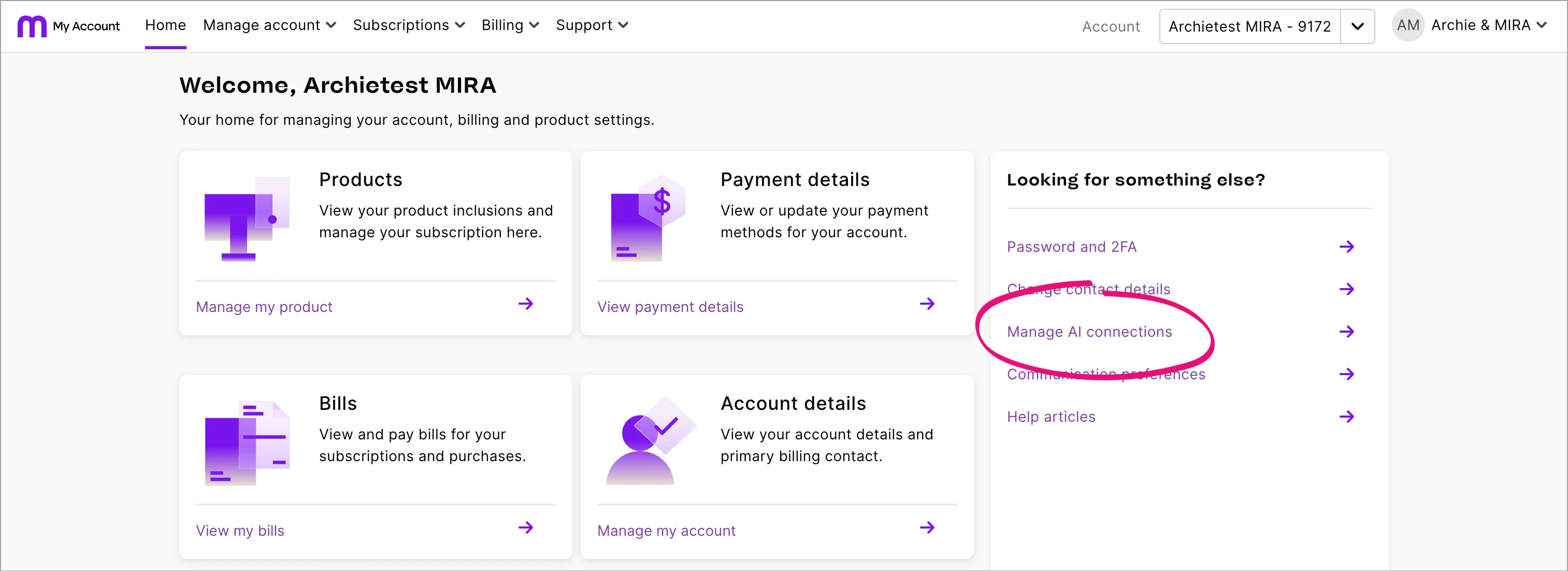
Click AI file access.
Find the business you want to connect.
Choose to allow access for Claude.



Allowing access makes the business available to select when you connect from Claude, but it doesn't complete the connection. You still need to connect MYOB from Claude.
Connect MYOB to Claude
Once the business owner has allowed AI access, you can connect to Claude.
Navigate to the Connectors directory in your Claude account.
Search for MYOB, then click Connect to Claude.
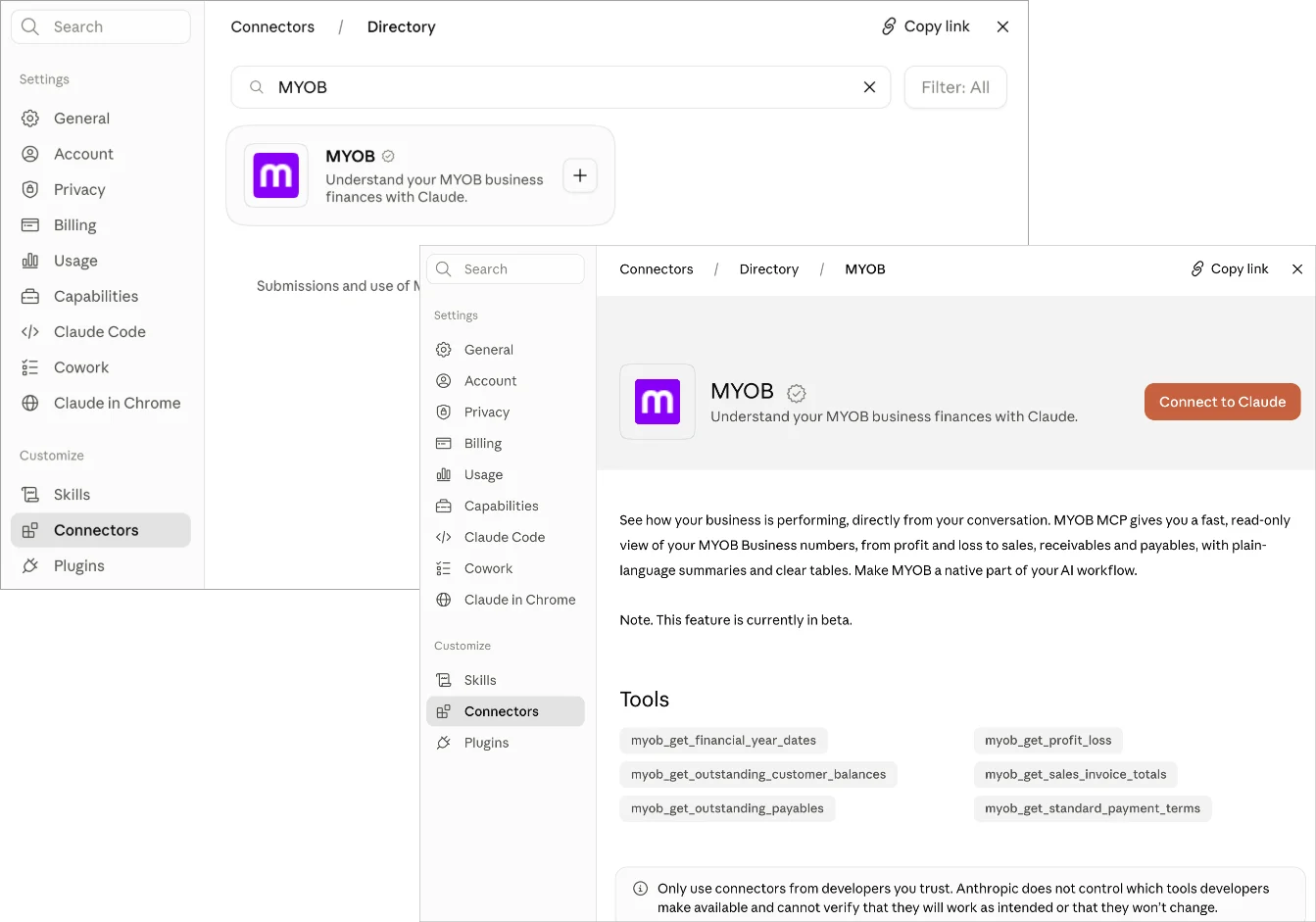
If prompted, enter your MYOB username and password.
If you have access to more than one MYOB Business file, choose the one you want to connect.
At the connection confirmation, click Done.

Once you’re connected, you can ask questions in Claude about your MYOB data.
More about using connectors in Claude
Ask Claude about your business finances
Once connected, ask questions about your MYOB Business finances within Claude.
The MYOB Connector supports read-only financial queries across areas such as:
revenue and profit
expenses
receivables and overdue invoices
cash position
You can ask questions like:
How is my business profit for 2026?
Who are my biggest customers by revenue?
Do I have any overdue invoices?
What were my top expenses last month?
What is my cash position?
What you can't do
The MYOB Connector doesn’t support:
payroll questions
inventory or job tracking
year-end tax advice or lodgement
making changes to your MYOB data
showing MYOB help content inside the connector
Want to use Claude for more small business tasks?
Claude’s Small Business plugin includes skills for workflows such as preparing reports and receiving cashflow. How to install and use the plugin.
Disconnect MYOB from Claude
If you no longer want to ask Claude about your MYOB data, or switch the connection to another MYOB Business file, you can disconnect.
Switch a connection to another MYOB Business file
To connect to another MYOB Business file, disconnect the current business from Claude, then connect the other business to Claude (see above). Each business you want to connect must have access allowed in My Account.
To disconnect from Claude:
Navigate to the Connectors directory in your Claude account.
Find and open MYOB.
Click Disconnect.
If you have access to more than one MYOB Business file, each business must be allowed to access AI connections in My Account. Then, disconnect one business and connect to another.
Tips for better answers
Ask a clear question in plain English. You’ll usually get a better answer if you include a time period or the part of the business you want to understand.
For example, these prompts are more specific:
What were my top expenses last month?
Who are my biggest customers by revenue?
Do I have any overdue invoices?
What is my cash position?
Privacy, data security and memory
Connecting MYOB to Claude is optional. You must sign in with your MYOB ID and authorise the connection.
The MYOB Connector is read-only. It can retrieve information to answer your questions, but it can’t create, edit or delete anything in your MYOB account.
MYOB handles your sign-in, so Claude doesn’t see or store your MYOB password. The connection is encrypted and can only access the data your MYOB permissions allow.
The connector sends the information needed to answer your question. Your conversation is also subject to Claude’s privacy settings and terms, including settings about using conversations to improve their AI models.
To manage these settings in Claude, go to Settings > Privacy and turn off Help improve our AI models. More about this Claude setting

Also check Claude's memory settings. Claude may use information from previous conversations, even when the MYOB Connector isn’t active. This information may not be current or based on your live MYOB data.
Memory is separate from chat history. In Claude, go to Settings > Memory to delete individual memories, pause memory or use Reset memory to permanently delete existing memories.
Troubleshooting
My connection stopped working | Your session may have timed out after a period of inactivity. Sign in to MYOB again from inside Claude. You don’t need to set up the connector again. Also check our status hub to see if there are any known MYOB outages. |
I can’t find MYOB in Claude | Access is being rolled out gradually. If you can’t see MYOB in the connector directory, access may not be enabled for your account yet. |
I'm having an issue with Claude - how do I check if it's a known problem? | Before troubleshooting further, check whether the issue is on Claude's end. Visit Claude Status to see if there's an active incident or outage affecting Claude. Also check our status hub to see if there are any known MYOB outages. |