When you add data from CSV or Excel, they don't sync automatically and all changes must be done manually.
Preparing the data before importing
-
The file type is CSV, txt or xlsx and has basic data such as account code, account name and balance (or debit/credit).
-
Make sure all the columns in your import have
-
column headers.
-
no blank rows in the data, and the thousands are not separated by a comma
-
dates are in the date format in Excel and your data is YTD
-
Uploading the Excel or CSV file
You can upload the file
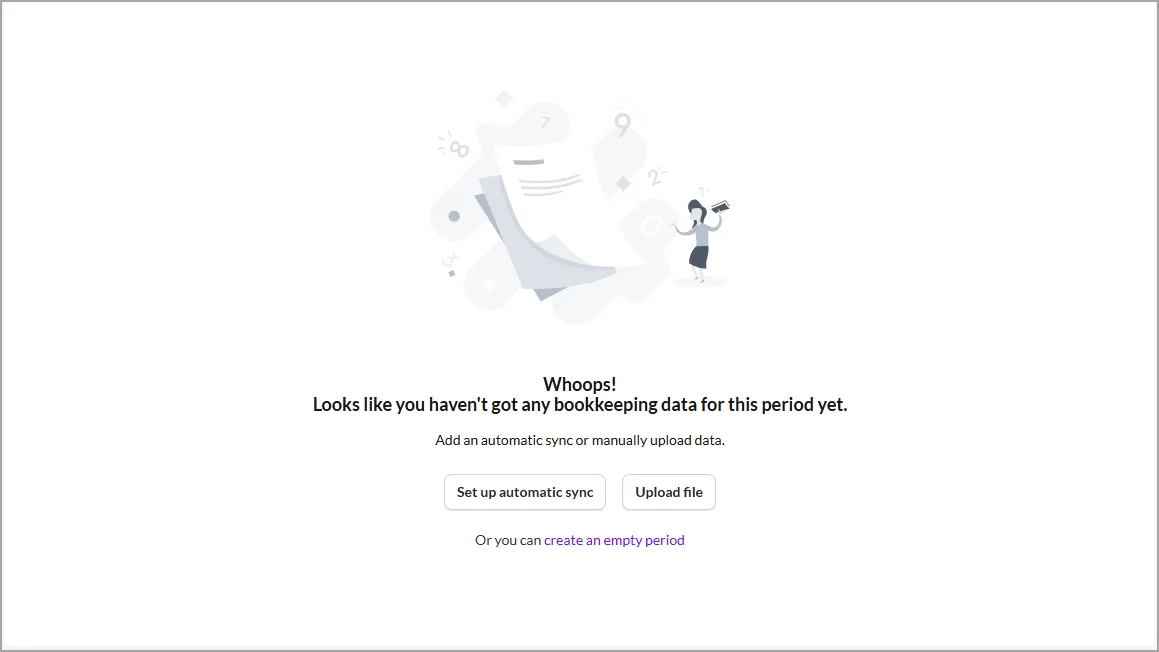
When linking a client, select Upload file.
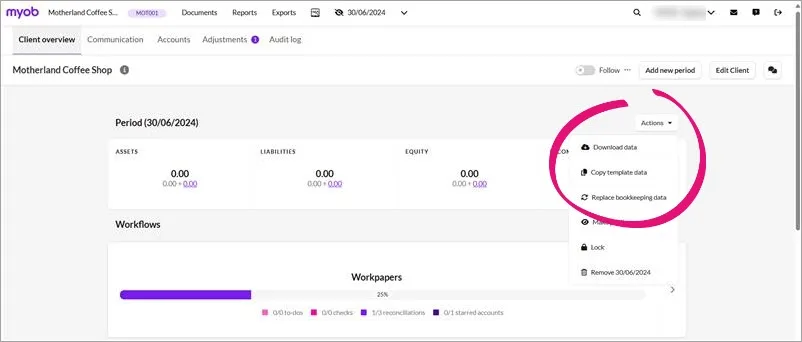
after changing a file’s sync from the current automatic synchronisation to manual upload. in the Client overview, click Actions and choose Replace bookkeeping data.


Importing the data
Select the columns you want to import and match the column headers with the appropriate columns in Client Accounting.
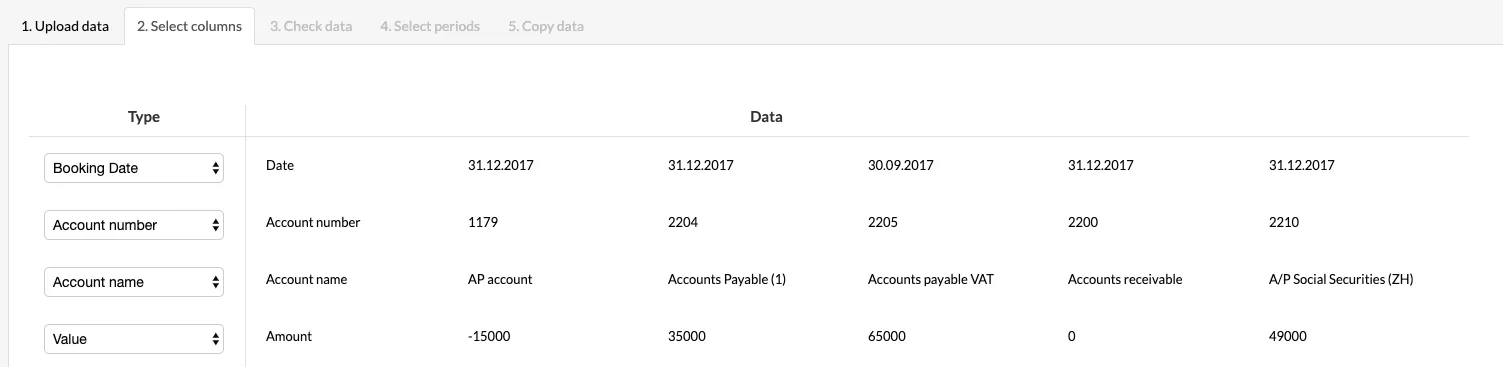
The following columns are essential to add the data successfully (but you can import as much information as you need).
Account code: the account code for that particular line item
Account name: the name associated with the ledger code (e.g. Issued capital)
Account type: the account type associated with the account. This will determine if the opening balance needs to be brought forward for the account or if it needs to be included in the retained earnings of the next financial year. The following account types should be used:
Account types are case- sensitive and must be in lower case.asset,
liability
expense
income
equity.
Credit/ debit value: You can either select the value (balance) or both the debit and the credit columns. Keep in mind that the sum of all the accounting values needs to equal zero.
Booking date and/or period: The booking date allows you to associate bookings with a chosen period.
Other columns
If you don’t want to add a column, then choose Ignore.
Choose Other value if you want to upload the data into the Silverfin program, and you can then name the columns yourself. Checking the items will confirm the selection.
When you have configured everything correctly, click Next.
Check the data. This is to make sure that the data is checked and complete before being uploaded.

Sample template
Date | Account number | Account name | Account type | Amount |
31/12/2017 | 1179 | AP Account | asset | -1500 |
31/12/2017 | 2204 | Accounts Payable (1) | liability | 35000 |
30/09/2017 | 2205 | Accounts Payable (VAT) | liability | 65000 |
31/12/2017 | 2000 | Accounts receivable | asset | 0 |