Avoid sign-in hassles and getting locked out if you can't get codes via your usual 2FA method. When you set up more than one 2FA method, you'll give yourself options for receiving verification codes.
For example, you could set up SMS 2FA on your phone and the 2FA authenticator app on a tablet. Then, if you don't have your phone handy and can't receive SMS, you can still get your 2FA code using the authenticator app on the tablet.
Available 2FA methods
Authenticator app (recommended) on a mobile phone or tablet – the code displays in the app
SMS (recommended as a backup method) – the code is sent to your mobile phone via text message
email (not recommended) – the code is sent to the email address linked to your MYOB account. Only available if you've already set it up.
Email 2FA is our least secure option and we’ll be phasing it out in 2027. You’re no longer able to add email 2FA as a new 2FA option. If you’re using email 2FA we recommend switching to passkeys and app 2FA with SMS 2FA as a backup 2FA option.
Set up passkeys for more options
Passkeys are a phishing-resistant way to sign in to all MYOB software and services without entering your email address and password. They work with a quick check on a device you trust. They keep signing in simple while helping protect your account from stolen credentials, lockouts and fraud.
For the strongest security and simplest method to verify your identity, we recommend you set up and use passkeys. A passkey is an alternative to entering your password. You don’t necessarily need to complete a 2FA check after signing in using a passkey (but 2FA must still be set up and you may still be prompted to enter a 2FA code in some situations, like when you change your security settings).
Set up the additional 2FA method you want to use
Log into My Account (myaccount.myob.com).
If prompted, enter a 2FA code using your existing 2FA method or a recovery code.
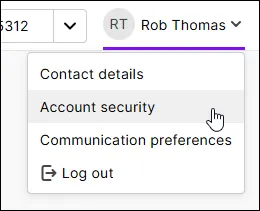
Click your user name in the top-right corner and choose Account security.
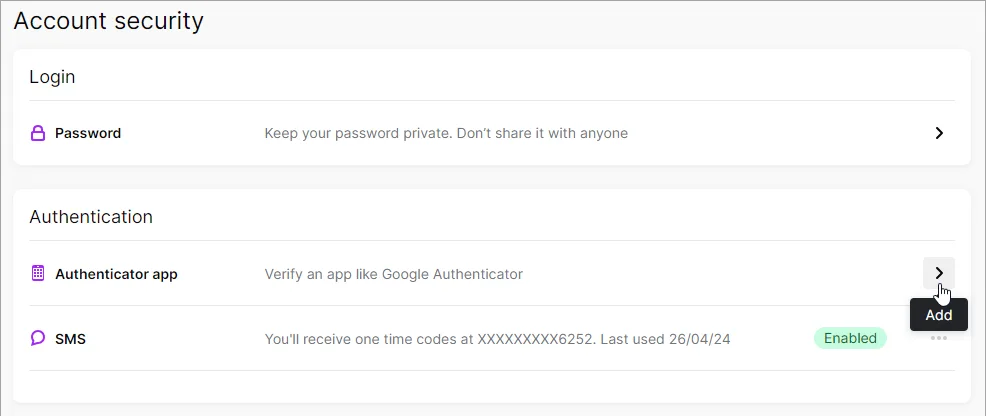
Click the Add (>) button for the additional 2FA method you want to set up.
You'll be prompted to verify your identity with a 2FA code. You'll receive this via the same method you normally use.
Follow the prompts to set up the additional method. Need detailed setup steps?


Once you're set up, you'll now have a choice of 2FA methods for verifying your account when you sign into MYOB.
Authenticator app will always be the first 2FA method presented when you sign in, but you can choose to sign in with the 2FA method you've added.
Sign in using another 2FA method
Once you've set up additional 2FA methods, if you can't use your regular 2FA method, click Try another method and choose the method.

Remove a 2FA method
You need at least one 2FA method, so you can only remove an additional 2FA method that you've set up.
If you remove email as a 2FA method, you can't add it back. Email 2FA is our least-secure option and we’ll be phasing it out in 2027. If you’re using email 2FA we recommend switching to passkeys and app 2FA with SMS 2FA as a backup 2FA option.
Log into My Account (myaccount.myob.com).
Click your user name in the top-right corner and choose Account security.
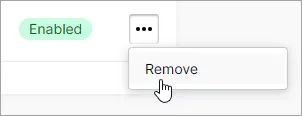
Click the ellipsis button (...) for a 2FA method and choose Remove.
At the confirmation, click Remove again.

Reset a 2FA method
If you have more than one 2FA method enabled, you can reset the authenticator app or SMS 2FA method. Doing this is like removing that 2FA method then setting it up again.
You can only reset a 2FA method if you have more than one 2FA method set up. If you’re not able to reset your 2FA, contact us.
You might need to reset a 2FA method to:
change the phone number your SMS 2FA codes are sent to
re-link your authenticator app to MYOB
change authenticator apps
set up an authenticator app on a new phone
Log into My Account (myaccount.myob.com).
If prompted, choose a 2FA method to verify your account and enter the 2FA code.
Click your user name in the top-right corner and choose Account security.
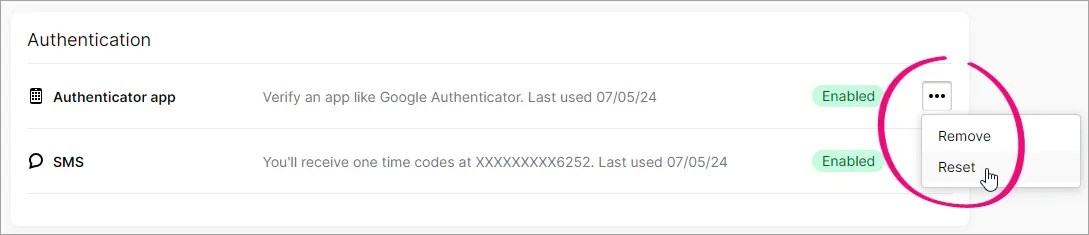
Click the ellipsis (...) button for Authenticator app or SMS and choose Reset.
At the confirmation, click Reset again.
Choose one of your other methods or a recovery code to receive a 2FA code to verify your identity.
Follow the prompts to set up authenticator app or SMS 2FA again.
