Start by adding a new client or setup an existing client for financial reporting.
If you use AE/AO and want to add a new client, add them in AE/AO.
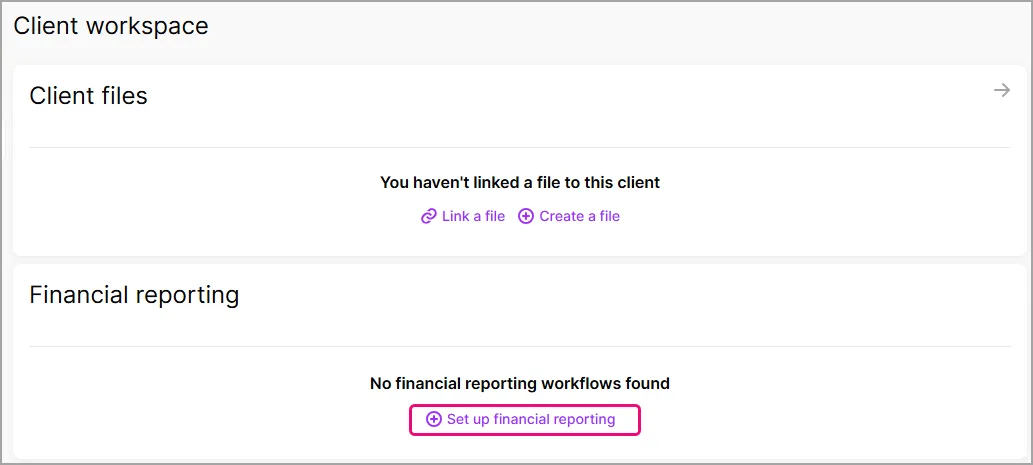
Open the client and go to Client workspace.
In the Financial reporting section, select Setup Financial reporting.
In the Set up financial reporting window, select
AU Special Purpose financial report and workpapers in Workflow drop-down.
Standard mapping list in Account mapping drop-down
Financial year end date.
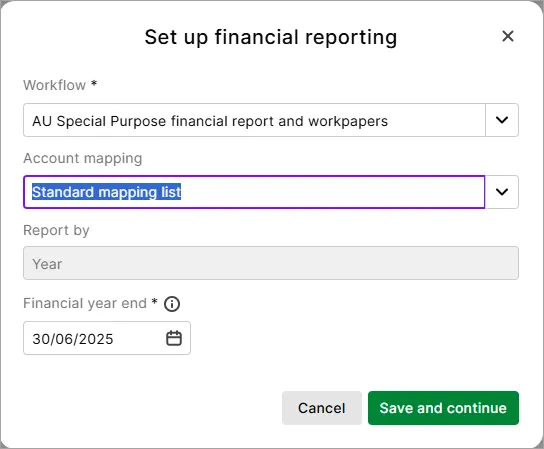
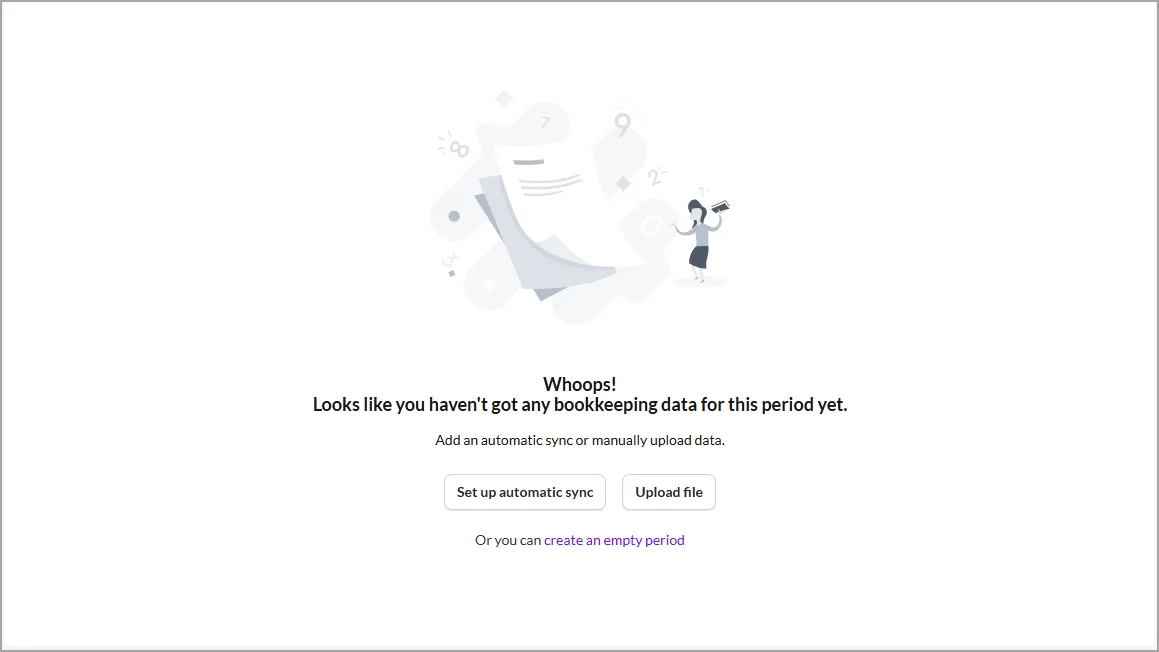
Click Save and continue to setup the financial report. You'll see a window with options to setup a sync file or upload a file for your client data.
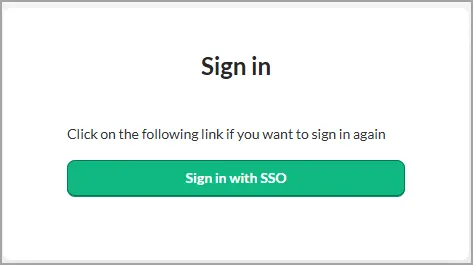
If you see a Sign-in message, click Sign in with SSO to log in to Client Accounting.


Next step - Adding client data in Client Accounting
The next step is Adding client data.
If you want to sync to MYOB Business, or a Quickbooks ledger, select Setup an automatic sync. This will automatically sync the data from the ledger in real time. We recommend setting up automatic sync.
See how to setup automatic sync (cloud based ledger)If you’ve got a CSV file with ledger details, select Upload file to import the ledger manually.
See how to manually upload a CSV file.